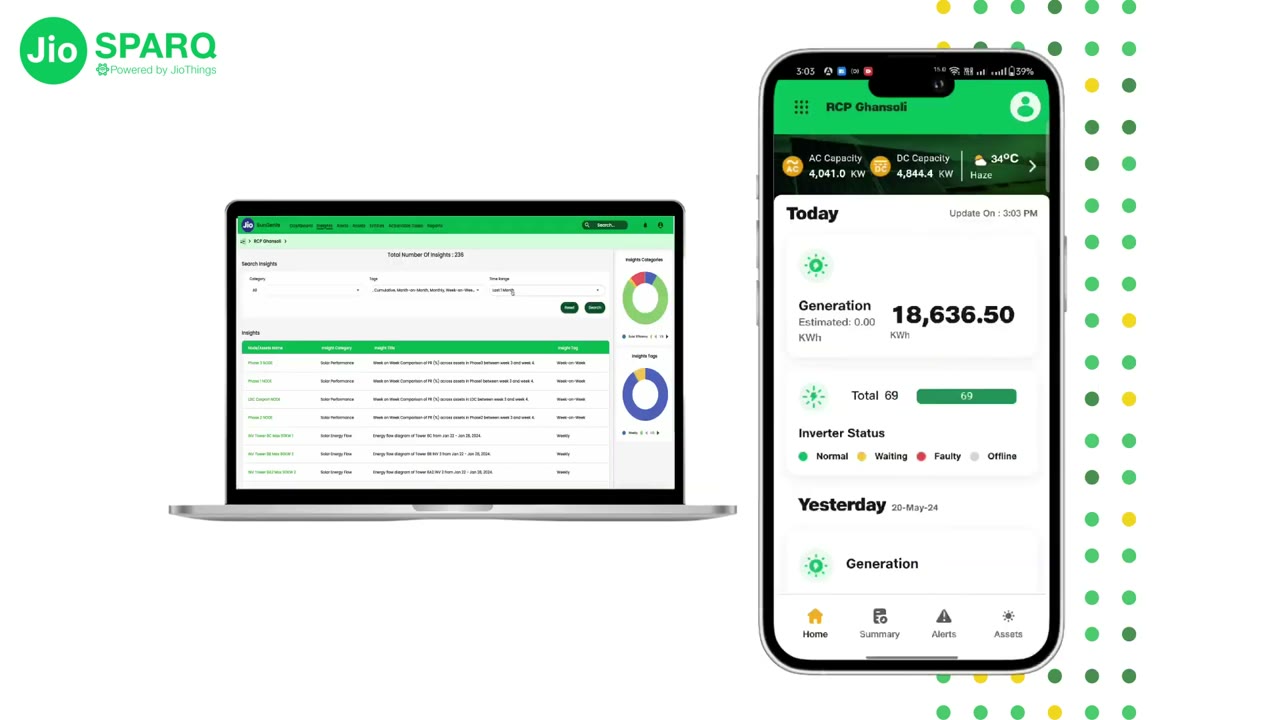
Step 1 of 9 · what the installer shows
Before you start
Every inverter installed and connected to its panels first. On each inverter the Zigbee communication LED then blinks red and amber; that is the cue to begin.
One connected stack behind every Sparq array (gateway, web monitoring and mobile), reporting panel-level performance to the cloud.
Access and monitor your energy system data at any time: the smart interface for the Quad2 and Quad3, usable on nearly any device, with your system's history kept in the cloud.
Watch the 9-step setup, from the kit to the dashboard. This film shows the India edition, set up with SparqLinq Wizard India.

Every inverter installed and connected to its panels first. On each inverter the Zigbee communication LED then blinks red and amber; that is the cue to begin.
[0:04] Once the inverters have been connected to the PV panels, you should see the Zigbee communication LED on the inverter blinking red and amber. Once you see the Zigbee communication LED blinking red and amber, follow the next steps.
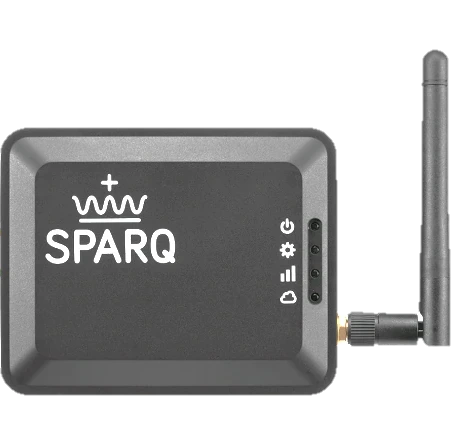
[0:39] With the Q2000 microinverters you should have received a SparqLinq installation kit. Inside this kit you will find one SparqLinq installation guide, one SparqLinq, one antenna, one power adapter and one Ethernet cable. The next step after unpacking the kit is to take the protective covering off the antenna screw, then tighten the antenna that came in the kit onto the screw.
[1:19] Once that is done, choose whether you want to use a Wi-Fi network or an Ethernet network to connect your SparqLinq to the internet. If you choose Ethernet, plug the Ethernet cable that came in the kit into the Ethernet port of the SparqLinq. If you choose Wi-Fi, make sure that the Wi-Fi network is available before plugging in the SparqLinq power adapter. Once the Wi-Fi network is available, plug in the power adapter.
[2:06] Out of the four LEDs on the SparqLinq, three should be solid blue. When the third LED, right next to the three bars, glows solid blue, the SparqLinq hub has created a SparqLinq network, and you should see it in your Wi-Fi network list. For the network security key of the SparqLinq Wi-Fi network, type in “SparqLinq 80211” (with the space) and click Next. After that you should see the message “No internet”.
[3:08] Once your smart device has connected to the SparqLinq network, open any browser and type the IP address 192.168.111.1 into the address bar. If you're using a wired Ethernet connection to connect your SparqLinq to the internet, select the “Check for new update” option; it makes sure your SparqLinq is updated to the latest version. If you're using a Wi-Fi network, the SparqLinq will update itself once every day.
[3:49] After this, click on SparqLinq Wizard India. Next you'll be asked to fill in the information of the installer and the customer using the Sparq Q2000 microinverter. Once you fill in these details, click Next.
[4:15] Step: inverter configuration. On this page you can scan for all the inverters within range of the SparqLinq by clicking the Scan button. The scan usually takes a minute or two. You should see the serial numbers of all the inverters installed on your site. Make sure the signal strength is good, then click Next.
[4:47] Once you're on the dashboard, take your mouse to the top-left corner and click the drop-down menu. In the drop-down menu, click Settings. On this page, click Network Settings. Here you'll see a drop-down menu called Detected Networks; click it and connect to your Wi-Fi network. Click “Show password” to confirm you have entered the correct password. The next step is to click “Test wireless settings”; this test takes about one minute. When the test finishes, open your Wi-Fi networks and refresh until you see the SparqLinq network again, and you'll see the message “Test successful”. After this, click “Apply network settings”.
[6:09] Now the system will ask you to connect back to your home wireless network. Go to your Wi-Fi settings again and connect to the home wireless network. After reconnecting, you will see a message; click “Go to the dashboard”, and your SparqLinq is connected to the internet.

The communication gateway talks to the inverters wirelessly, so it is mounted on the roof close to them. A Jio e-SIM inside, plug and play, powered from a 12 volt adapter.
In Hindi, filmed on an India install. Step summaries in English. Pick any step to play it.
Manage multi-site monitoring with intuitive displays that help you quickly spot issues and troubleshoot from anywhere.
Every array you manage, one dashboard.
Spot issues at a glance, panel by panel.
Troubleshoot any site from a browser.
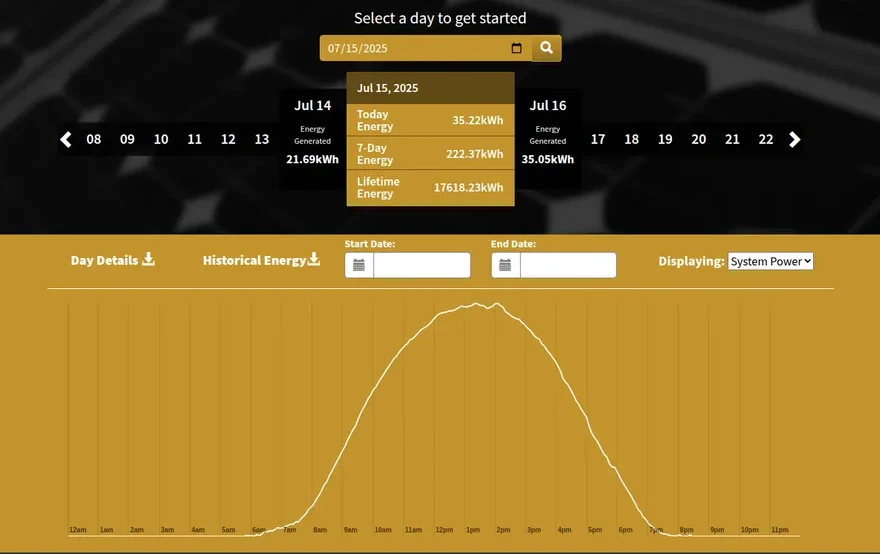
SparqVu's daily energy view. Illustrative data.
SparqSync shows your array and its alerts on your phone, wherever you are.
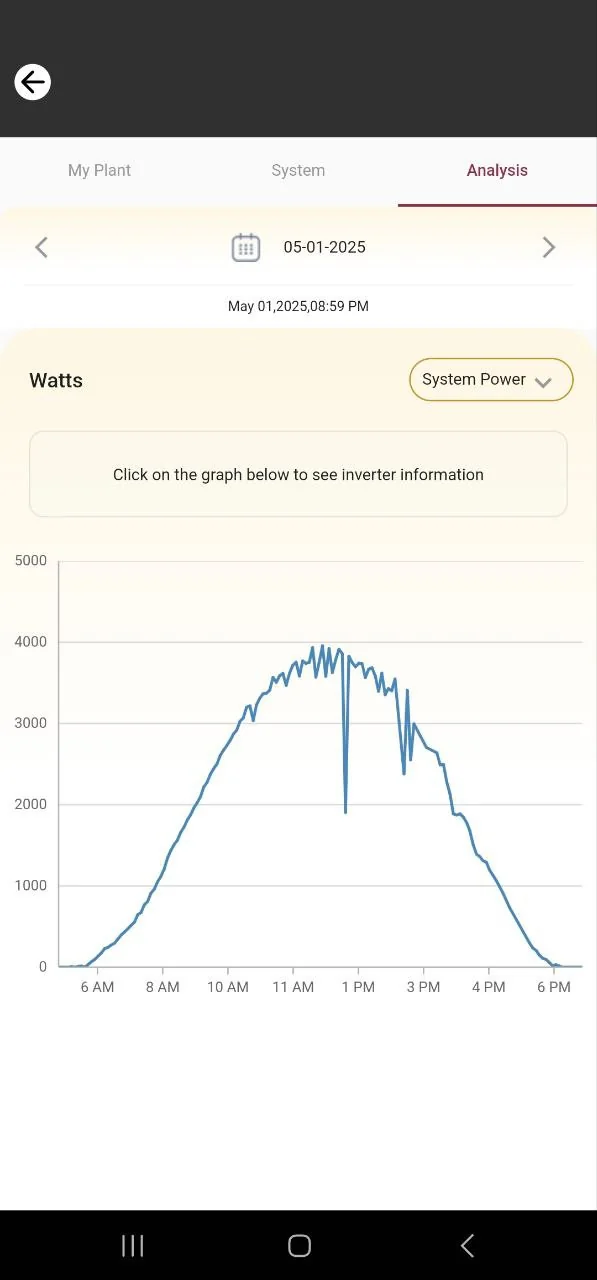
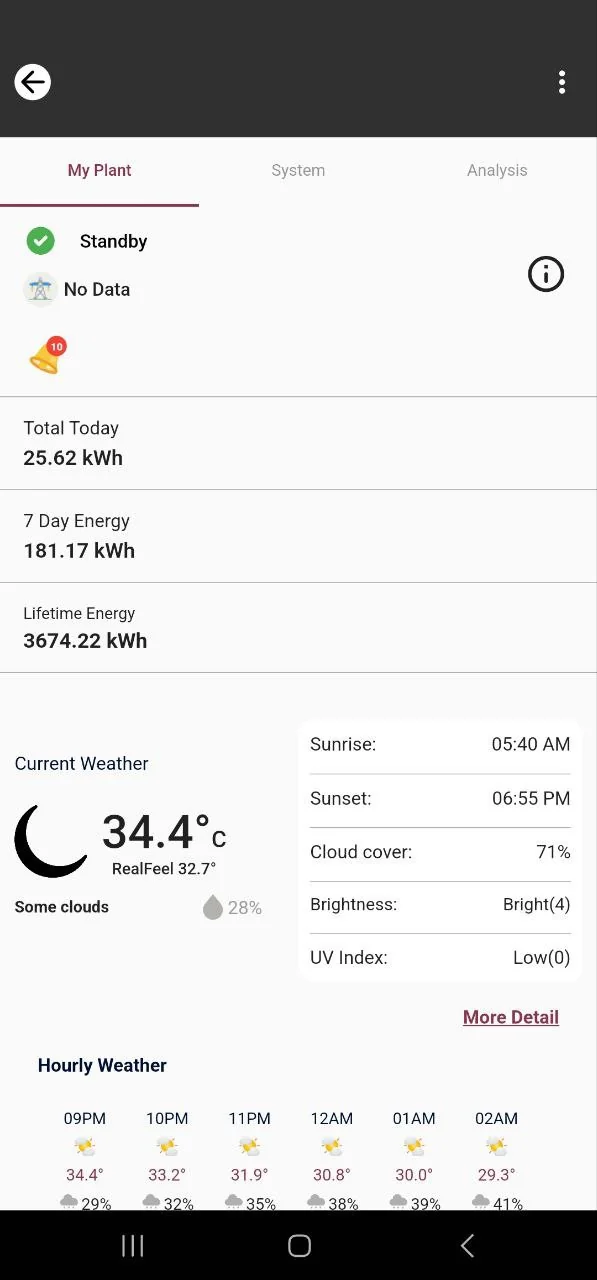
SparqSync on a phone. Illustrative data.